Install
Installing MacFolders
MacFolders is not on the Mac App Store and this build is not signed with an Apple Developer ID, so macOS shows a warning the first time you open it. Three steps get you past it.
-
1
Download and copy the app to Applications.
Download MacFolders from the Download page, unzip it if your browser did not do that already, then drag MacFolders.app into your Applications folder.
-
2
Open it — and click Done, not Move to Trash.
Double-click MacFolders in Applications. macOS says it cannot check the app for malicious software and offers Done and Move to Trash. Click Done. Do not click Move to Trash — that only deletes the app.
-
3
Allow it in Privacy & Security.
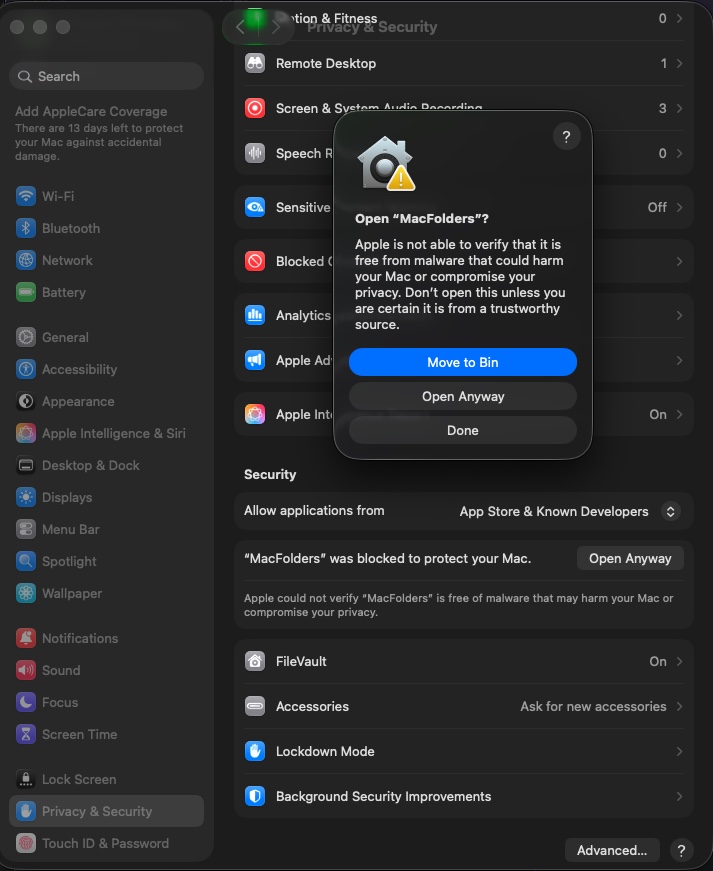
Open System Settings → Privacy & Security, scroll to the Security section, and click Open Anyway next to the note that MacFolders was blocked. Confirm in the dialog that appears — click Open Anyway again, not Move to Bin — then open the app again; it now launches normally.
What you'll see
The Privacy & Security confirmation
After clicking Open Anyway in Privacy & Security, macOS asks you to confirm once more. Choose Open Anyway in this dialog too — Move to Bin deletes the app instead.
 View larger
Instead of steps 2 and 3, you can Control-click (right-click) MacFolders in Applications and choose Open from the menu, then click Open again when macOS asks. This skips System Settings entirely and only needs doing once — macOS remembers the choice after that.
This is not specific to MacFolders — every app distributed outside the Mac App Store without an Apple Developer ID shows the same warning. You do not need to turn off Gatekeeper; allowing this one app is enough.
Next
Full Disk Access
To browse Desktop, Documents, Downloads, and other protected folders, add MacFolders in System Settings → Privacy & Security → Full Disk Access. Click + and choose MacFolders from Applications, or drag it onto the list. See Docs for details.