 Dual panes
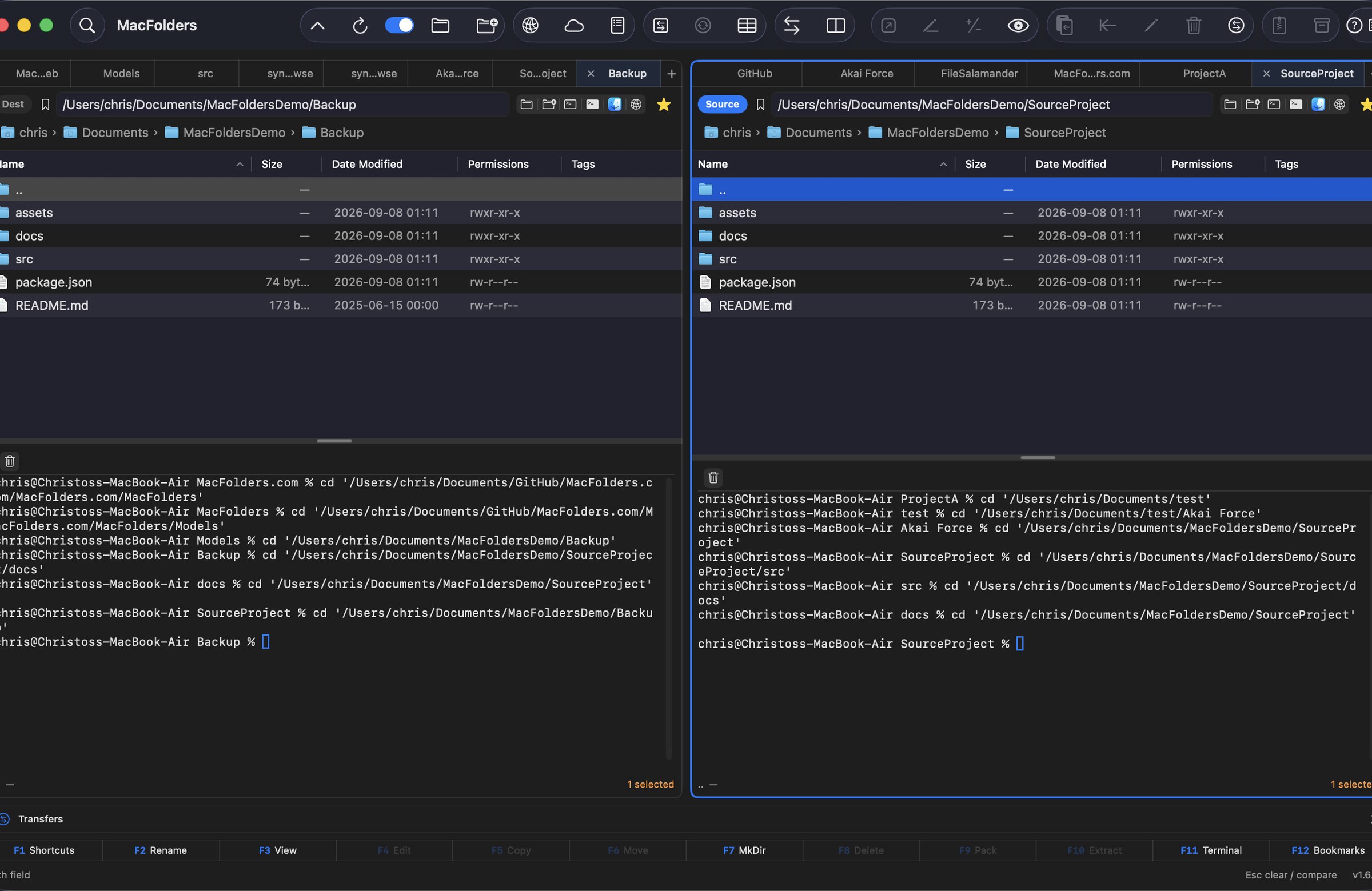
Click a pane to make it Source. Tab or Flip switches Source without moving the file selector. Swap exchanges the two folders, including their tabs.
Free while MacFolders is in beta — register today and that email keeps 80% off Pro for life.
See how it works →Feature list
A native Mac dual-pane file manager: Source and Destination, tabs, archives, compare, Find, preview, and a keyboard-first toolbar. Click a feature icon to open that topic in Docs. Click any screenshot for a larger view.
Action bar
The same icons that sit on the MacFolders window toolbar. Click one to focus it and open a panel describing what it does; click the red dot to close.
Dual panesClick a pane to make it Source. Tab or Flip switches Source without moving the file selector. Swap exchanges the two folders, including their tabs.
 Finder-style lists
Name, Size, Date Modified, and Permissions by default. Add Date Created, Date Added, Date Last Opened, Kind, and more. Sort from the header. Both panes share columns and text size. The list updates when the folder changes on disk.
 Permissions
Right-click one or more files or folders and choose Permissions… to tick owner/group/other read, write, and execute boxes, or type an octal mode. Apply to enclosed items recurses into a folder. New in 1.6.13.
 Tags
TagsA Tags column shows each item's Finder tags as colored dots and names. Right-click to toggle standard colors or custom tags across a selection, add a new tag, or remove them all — same behavior as Finder. New in 1.6.19.
 Comments
A Comments column shows each item's Finder comment. Right-click one or more files or folders to set or clear it across the selection — mirrors Tags. New in 1.6.26.
 Folder tabs
Each pane has native tabs. New Tab, close extras, restore them the next time you open the app. The last tab in a pane stays open.
 Path bar and Go
Breadcrumb of volume and folder icons. Type or paste a path and matching local subfolders predict the rest as you go. The bookmark icon  shows saved folders on demand. New in 1.6.12. The same list also shows your saved FTP/SFTP connections, after the folder bookmarks — pick one to connect and open it in a new tab. New in 1.6.20.
 Sync Browsing
Enabled once both panes’ current folders share a name. Pin them as roots, then browse either one and the other follows the same relative subpath — handy for comparing parallel project or backup trees. Turns off if a pane reaches a subpath the other side doesn’t have, moves outside its root, switches tabs, or the synced tab closes. New in 1.6.24. Either pane (or both) can now be a remote or cloud connection, so this also pairs a local folder with its FTP/SFTP/S3/WebDAV/Dropbox backup, or two remote trees. New in 1.6.27.
 FTP / SFTP
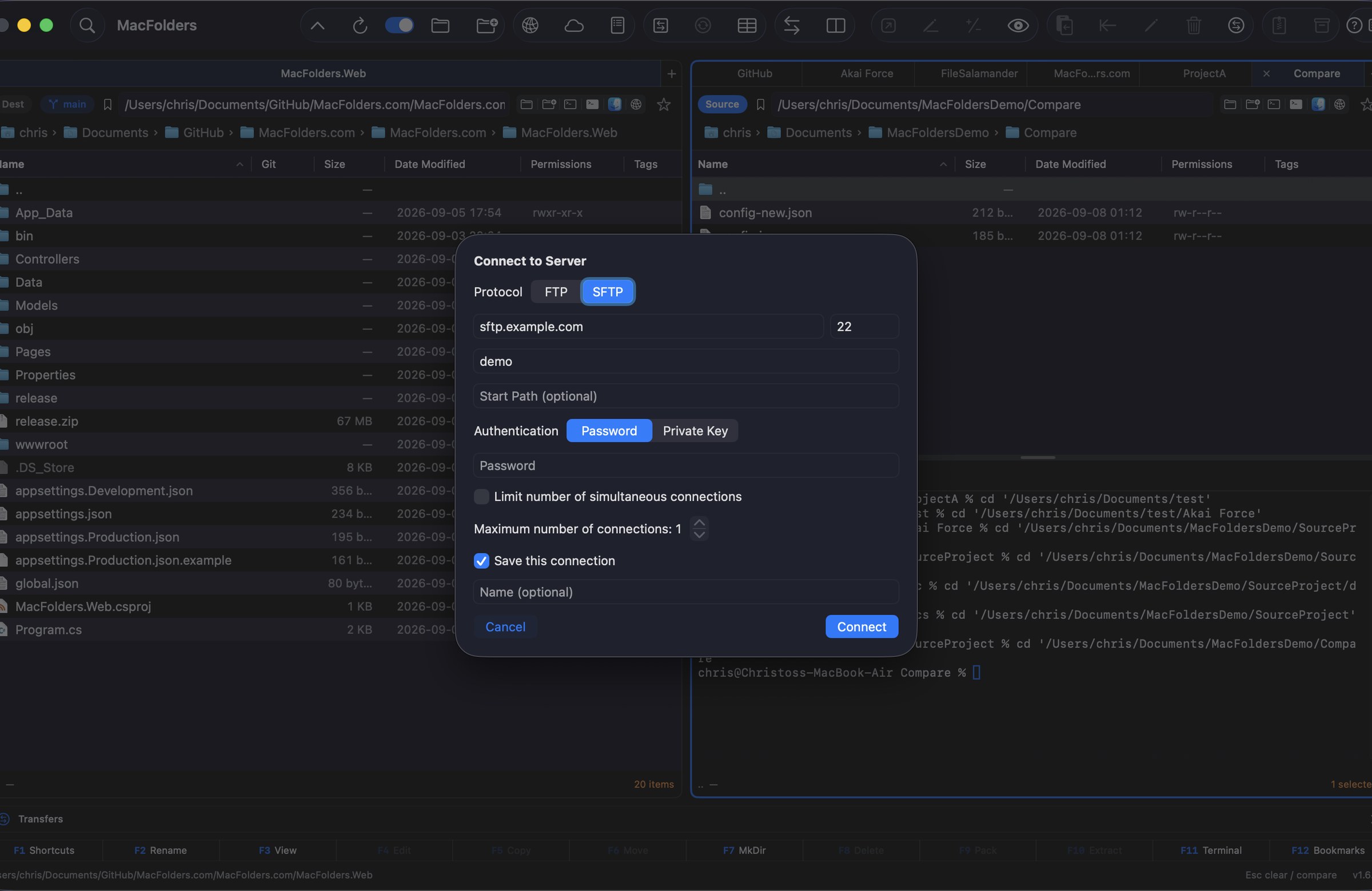
Connect to Server (⌘K) opens a remote pane you browse, drag, upload, and download like a local folder. Passwords and key passphrases stay in the Keychain; SFTP host keys are pinned.
Cloud ProvidersAdd Cloud Provider connects to WebDAV, S3 (plus S3-compatible services like MinIO, Backblaze B2, and DigitalOcean Spaces), or Dropbox and browses the account like a local folder — drag to upload or download, or rename, delete, and create folders remotely. Manage Cloud Providers lists saved connections to reconnect, edit, or delete. Dropbox uses a personal access token; WebDAV and S3 keep their secret keys in the Keychain, never in settings.json. New in 1.6.21.
 Transfer queue
Copy, move, and delete jobs queue in a persistent Transfers window — pause, resume, cancel, retry, or reorder any of them, and they survive a relaunch. A dropped connection pauses and auto-resumes the job instead of failing files one by one, and SFTP/FTP/S3/Dropbox transfers resume mid-file rather than restarting. New in 1.6.22. S3, Dropbox, and WebDAV transfers are also checksum-verified after completion, catching a corrupted upload or download instead of trusting it silently. New in 1.6.25. It also opens automatically the instant an FTP, SFTP, or cloud job starts sending or receiving, and can be shown or hidden with ⌃T. New in 1.6.30.
 Bulk Delete & Rename
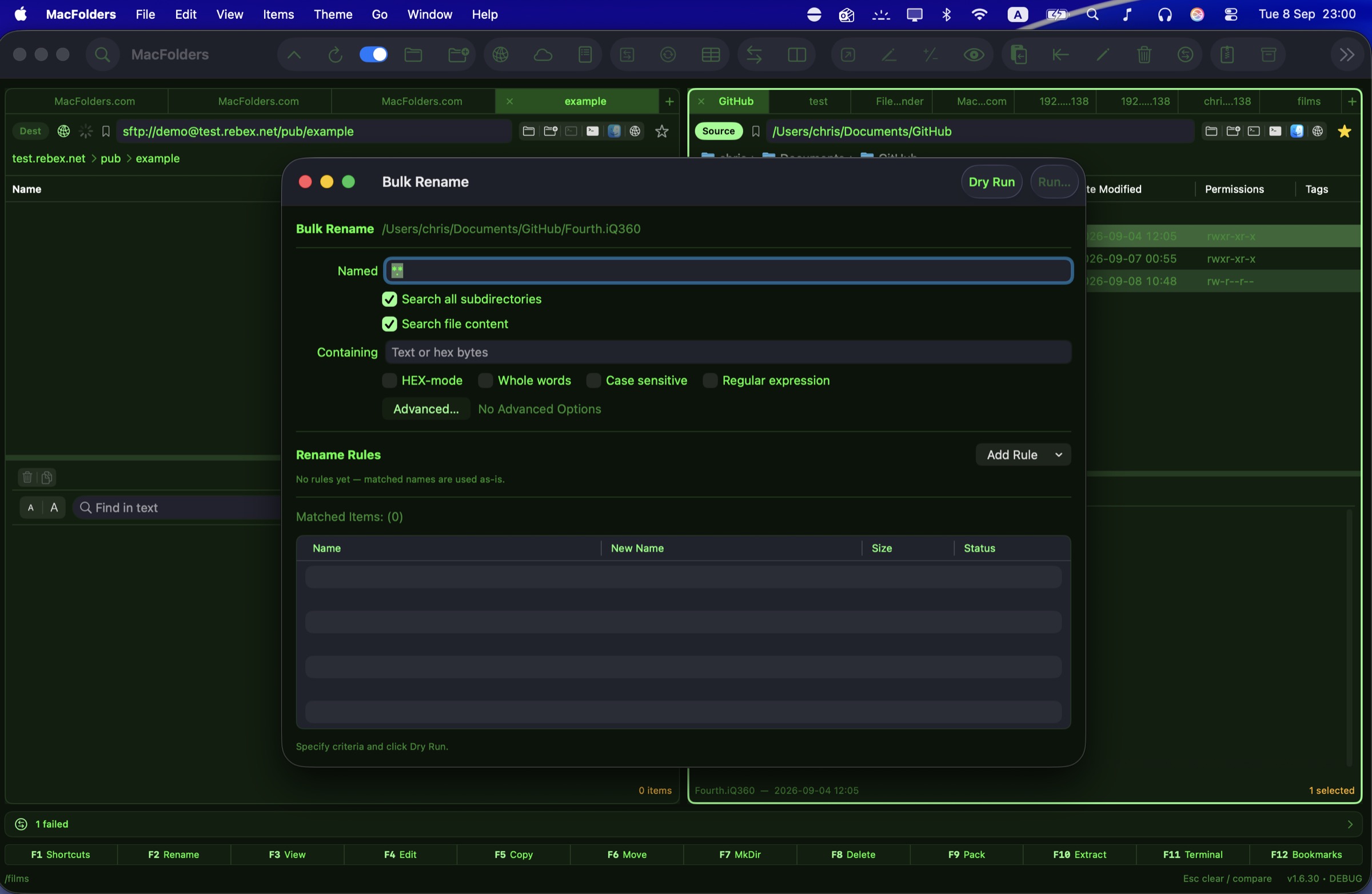
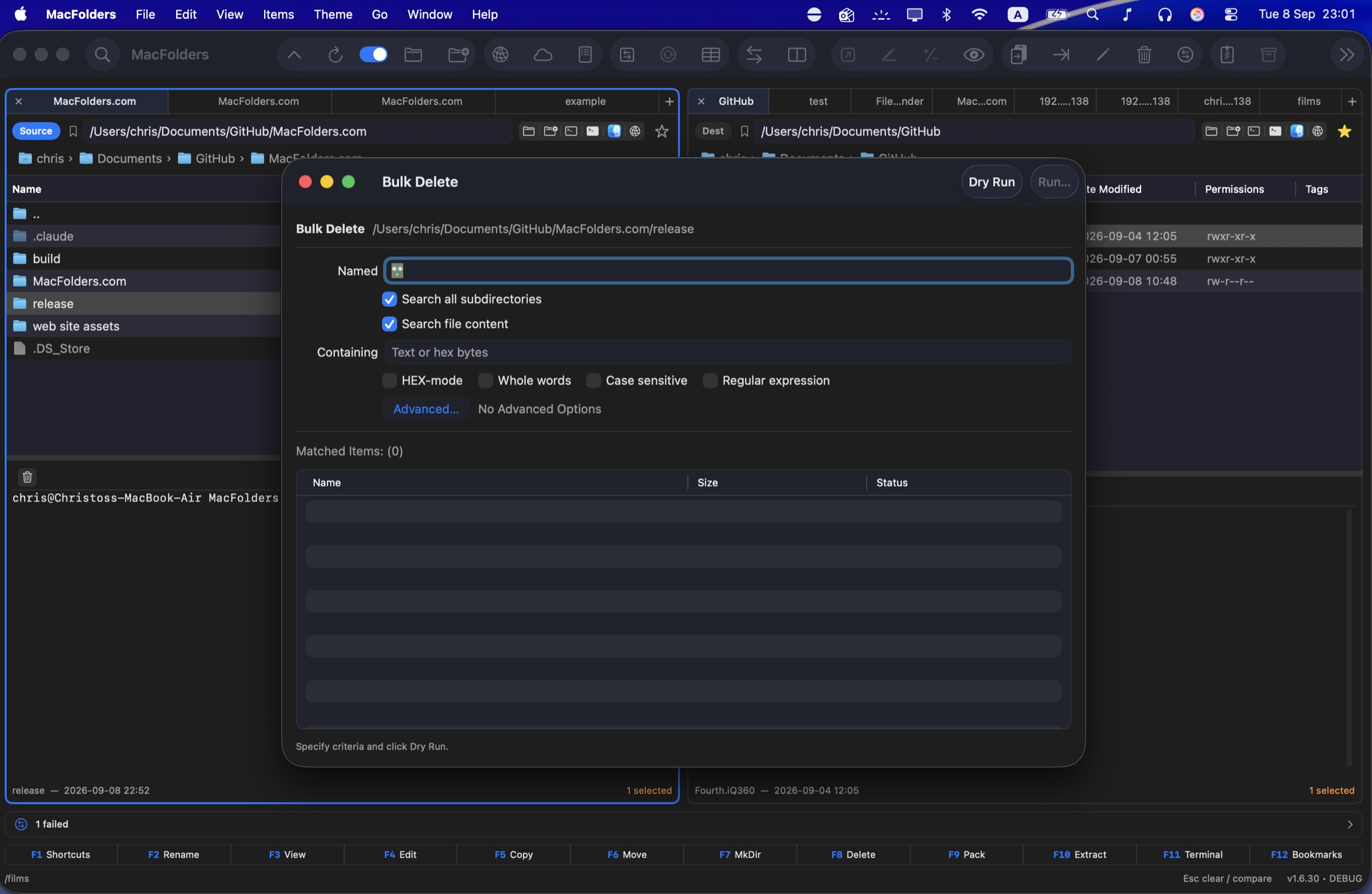
Right-click a folder for a dedicated window that walks its whole tree and previews every matching file before anything runs. Local folders get full Find-style filters; FTP, SFTP, S3, WebDAV, and Dropbox get simple name wildcards. Rename combines find/replace, case conversion, prefix/suffix, sequential numbering, and extension rules, with a live preview and conflict warnings. Runs through the same queue as copy and move, so it pauses, resumes, and survives a relaunch mid-run. New in 1.6.30.
 Open in Finder
The Finder icon on a pane, Control-click, or Go → Open in Finder (⌥⌘F) opens that pane’s folder in Finder. Inside a zip or tar it reveals the archive file instead.
 Open Terminal
The terminal icon, Control-click, or Go → Open Terminal (⌥⌘T) opens Terminal.app in that pane’s folder. Unavailable while the pane is inside an archive.
 Embedded Terminal
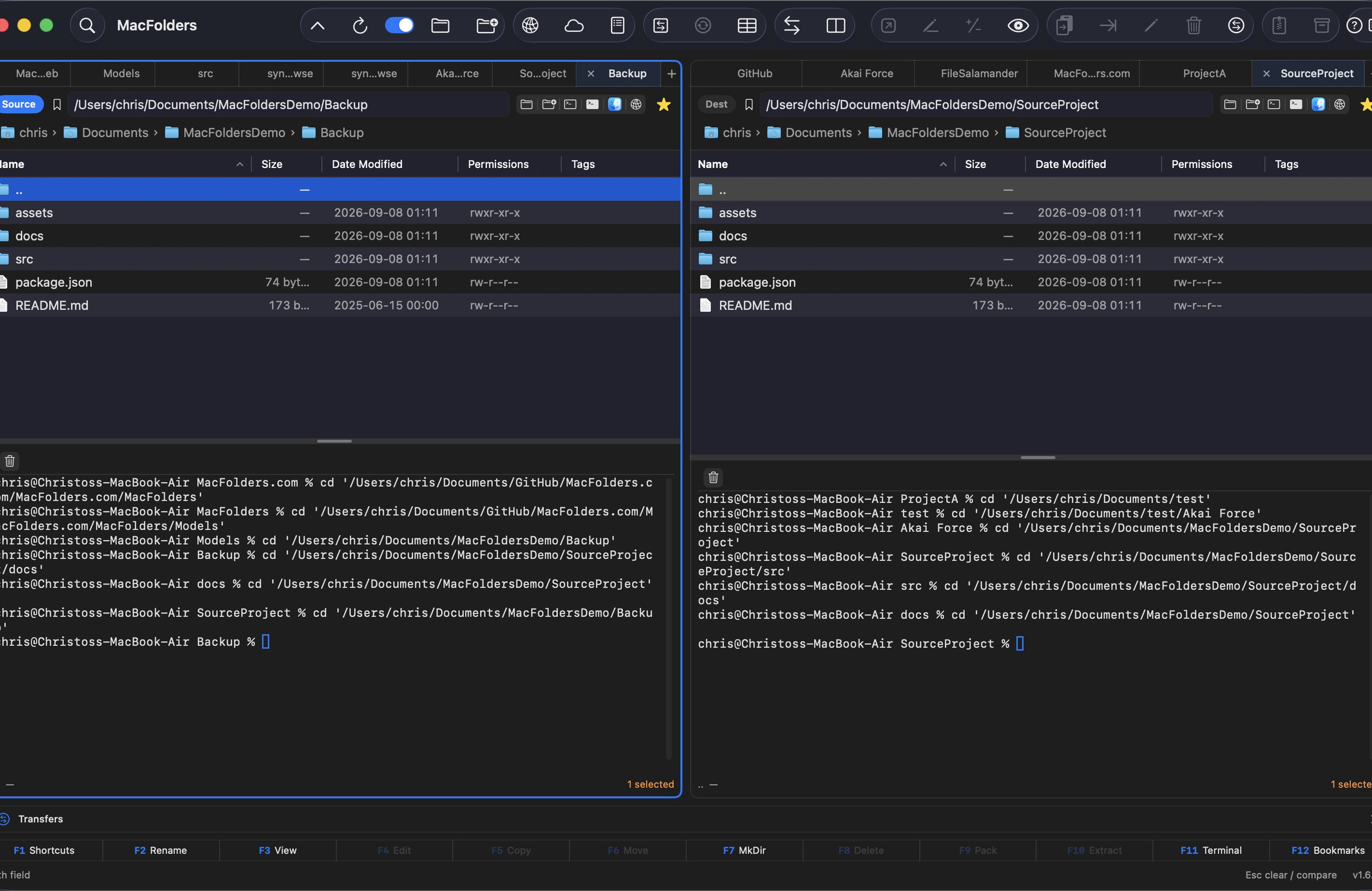
The green terminal icon, Control-click, or Go → Show Embedded Terminal (F11 or ⌃⌘T) opens a colored, resizable shell below that pane’s file list, without leaving the app. New in 1.6.4. A toolbar above it offers Clear Terminal, plus Git Status, Fetch, Pull, Push, and Commit All… inside a git working tree. New in 1.6.11. The shell follows along as you navigate, sending a cd whenever the pane’s folder changes. New in 1.6.25.
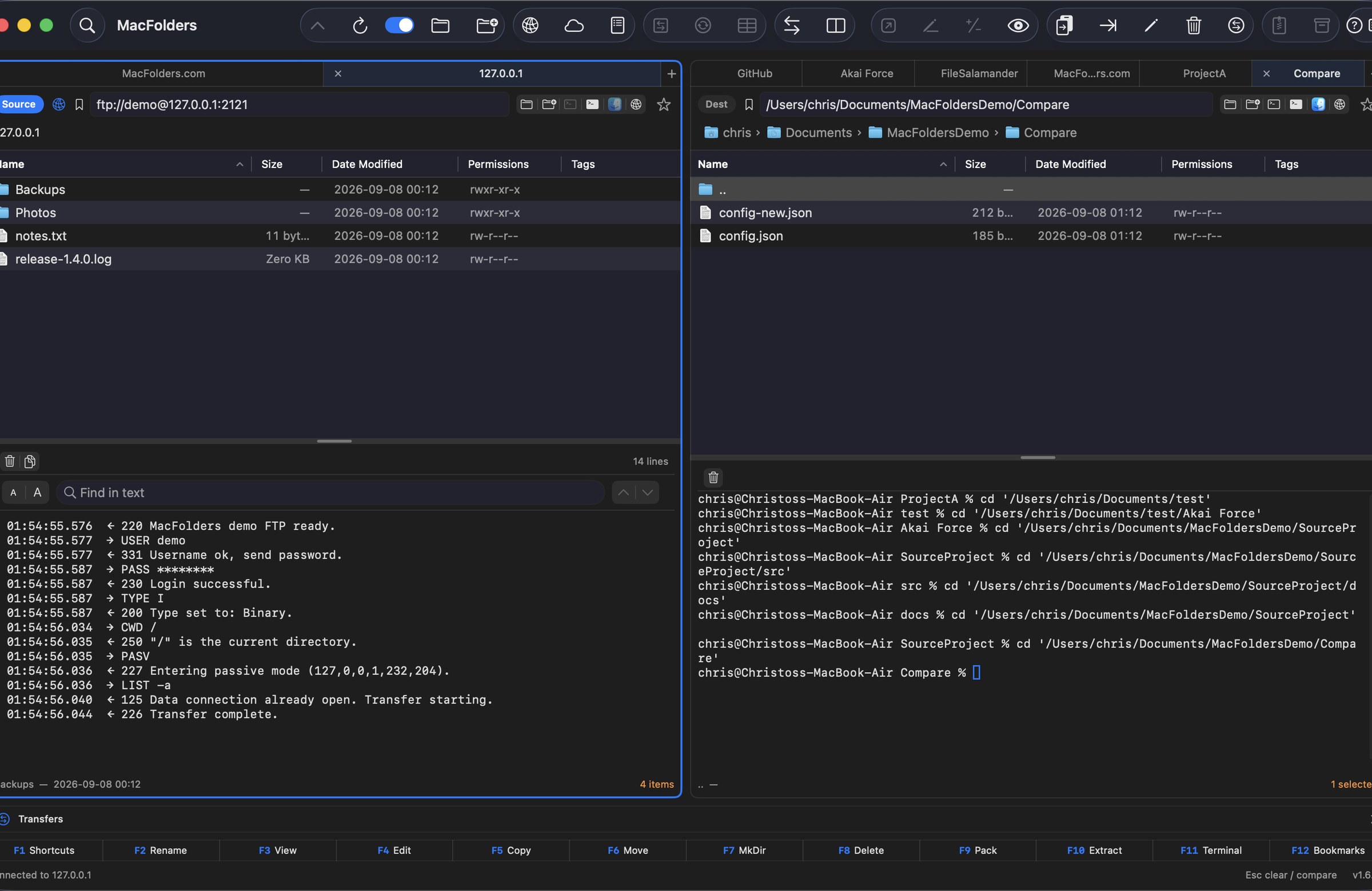
FTP command logOn a remote FTP or SFTP tab, the same green icon instead shows a live command/response log below the file list, with Clear, Copy All, and find-in-text. New in 1.6.16. SFTP has no plaintext wire protocol to tap, so it logs one pseudo-command per operation instead. New in 1.6.30.
Drag and drop from FinderDrop files or folders from Finder onto a pane to copy or move them into that folder. A dialog asks Copy, Move, or Cancel. Drops into a ZIP work; tar and read-only volumes are refused.
 Copy and move
From Source to Destination. Copy and Move icons point that way and flip when Source changes. Overwrite asks Yes, All, Skip, Skip All, Copy only if newer, or Cancel.
 Copy Template
Copy Template… copies a selection while skipping files and folders you exclude, by exact name (e.g. .git) or wildcard pattern (e.g. *.log; *.tmp). Exclusion rules save as named, reusable templates, and Dry Run previews exactly what will be copied versus excluded — including inside ZIP/TAR archives — before you apply it. New in 1.6.39.
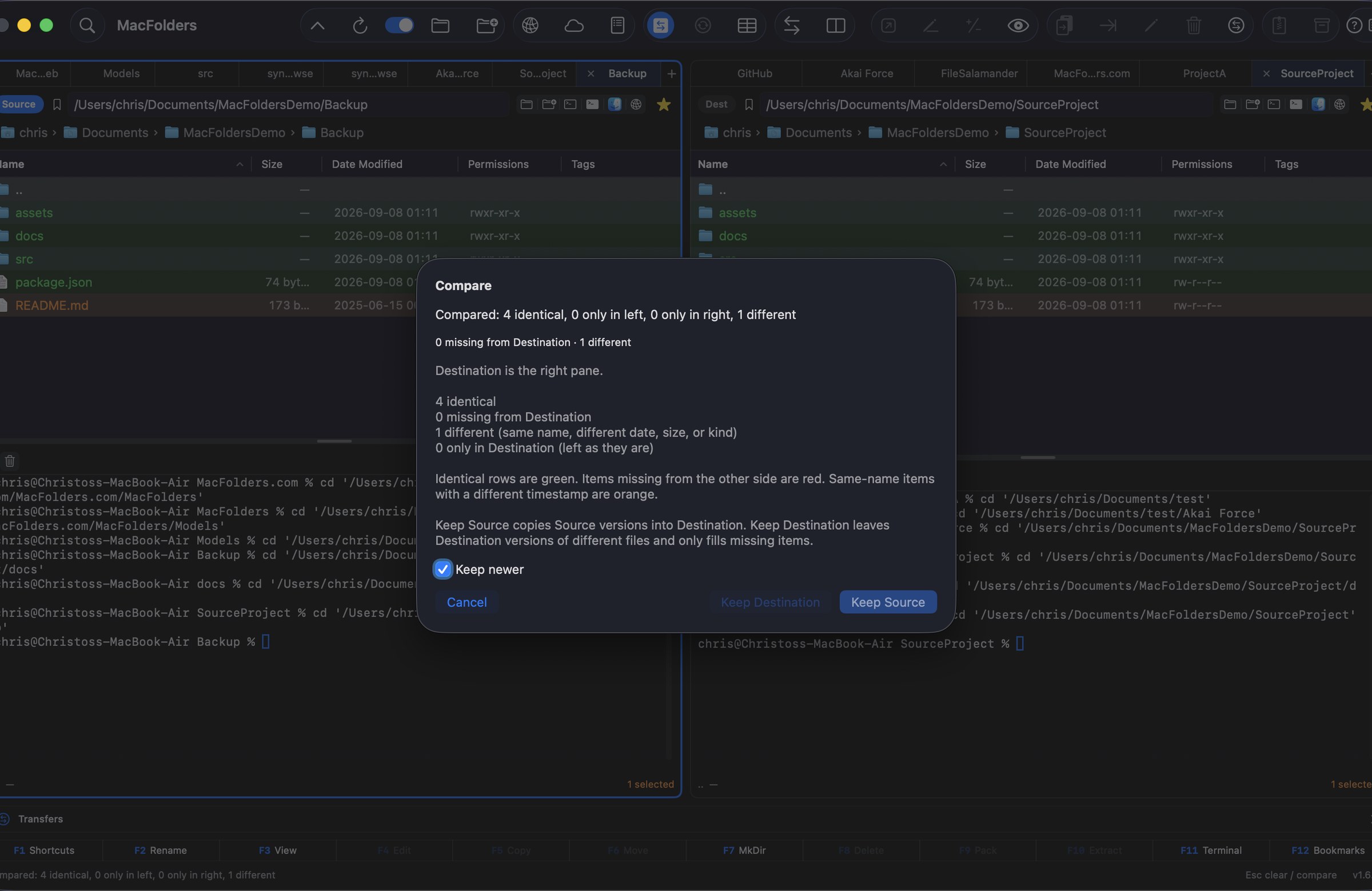
Folder compareIdentical items green, missing red, different dates orange. Then Keep Source, Keep Destination, or Cancel, with Keep newer on by default.
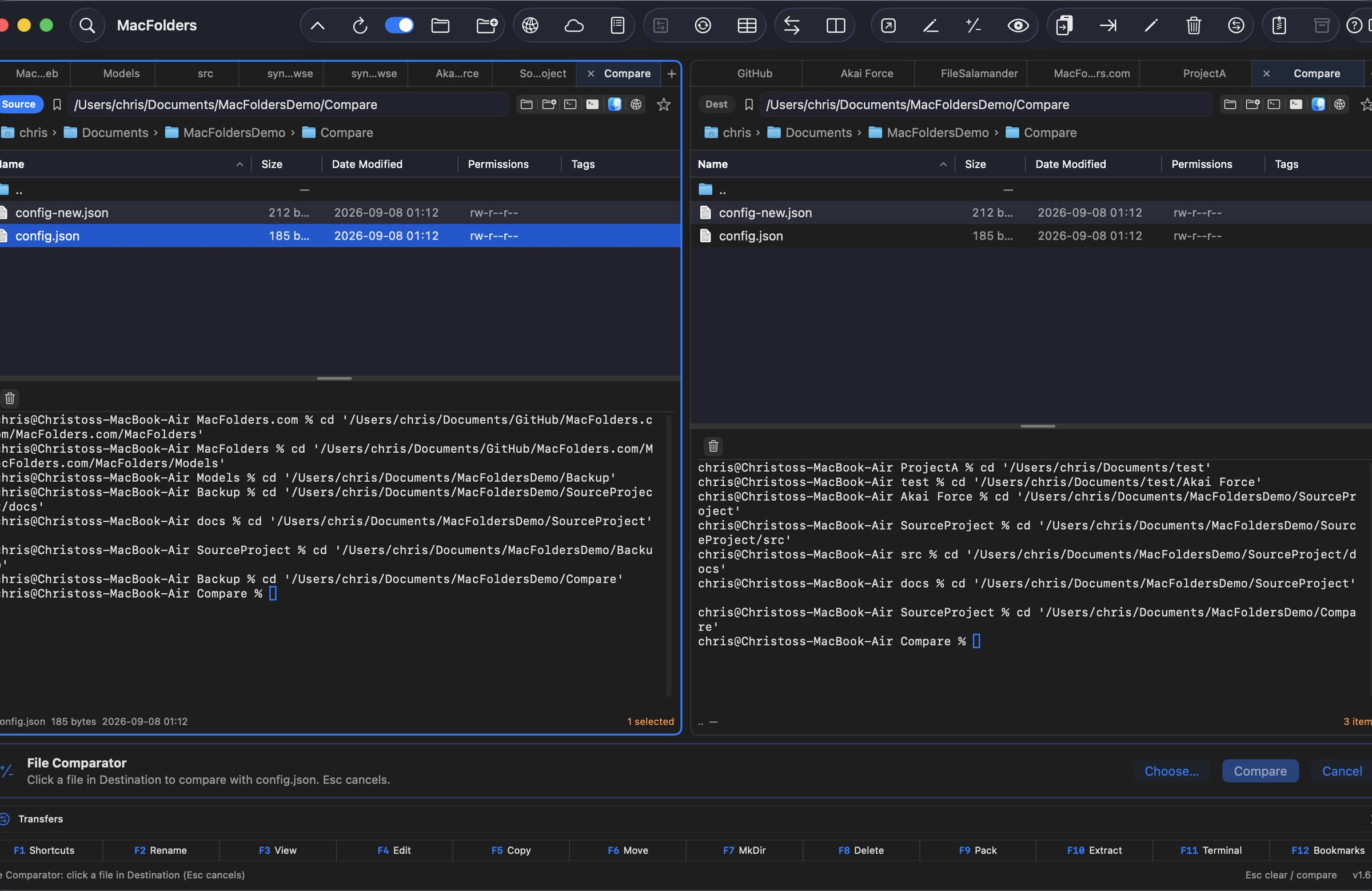
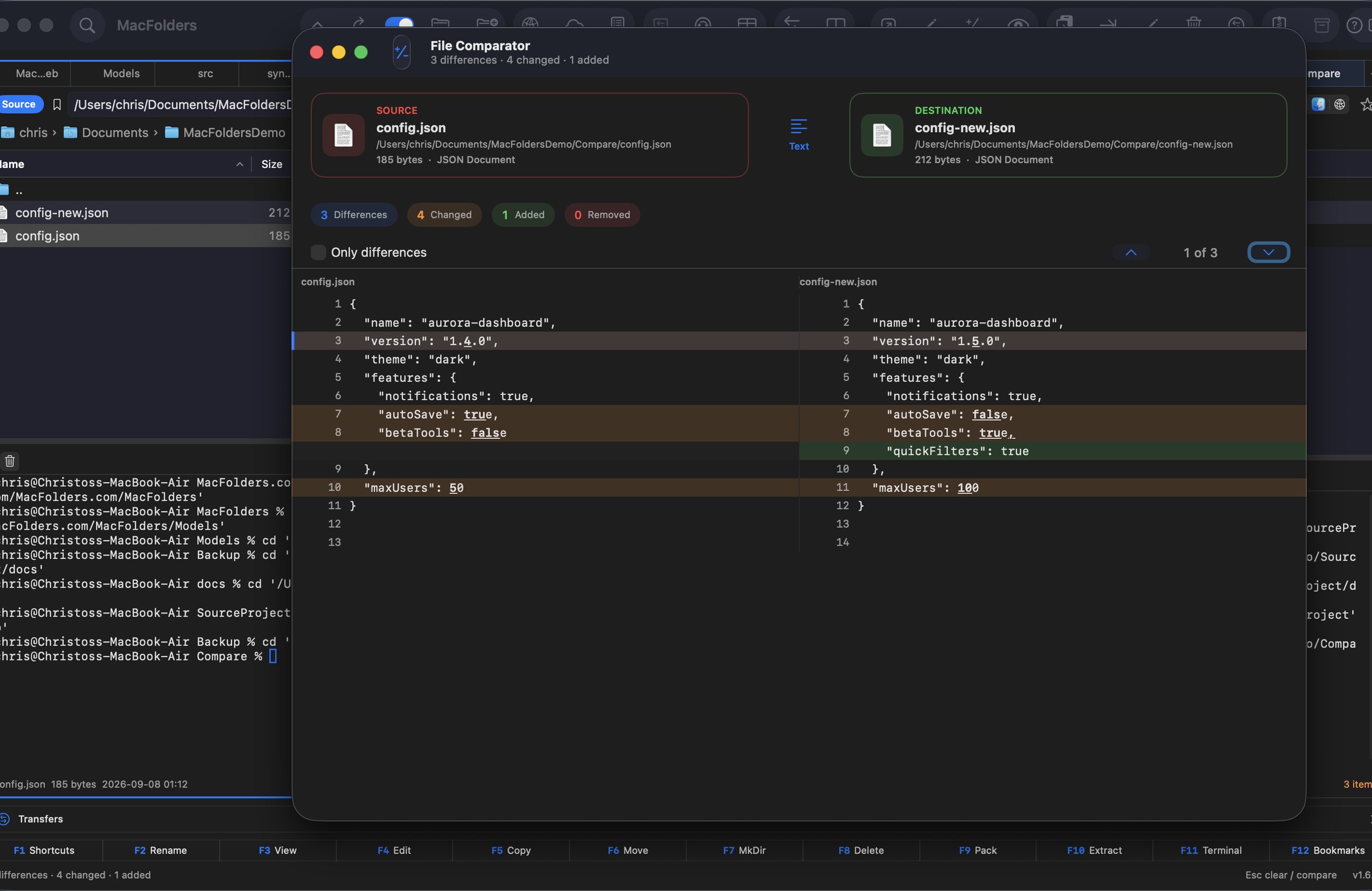
 File Comparator
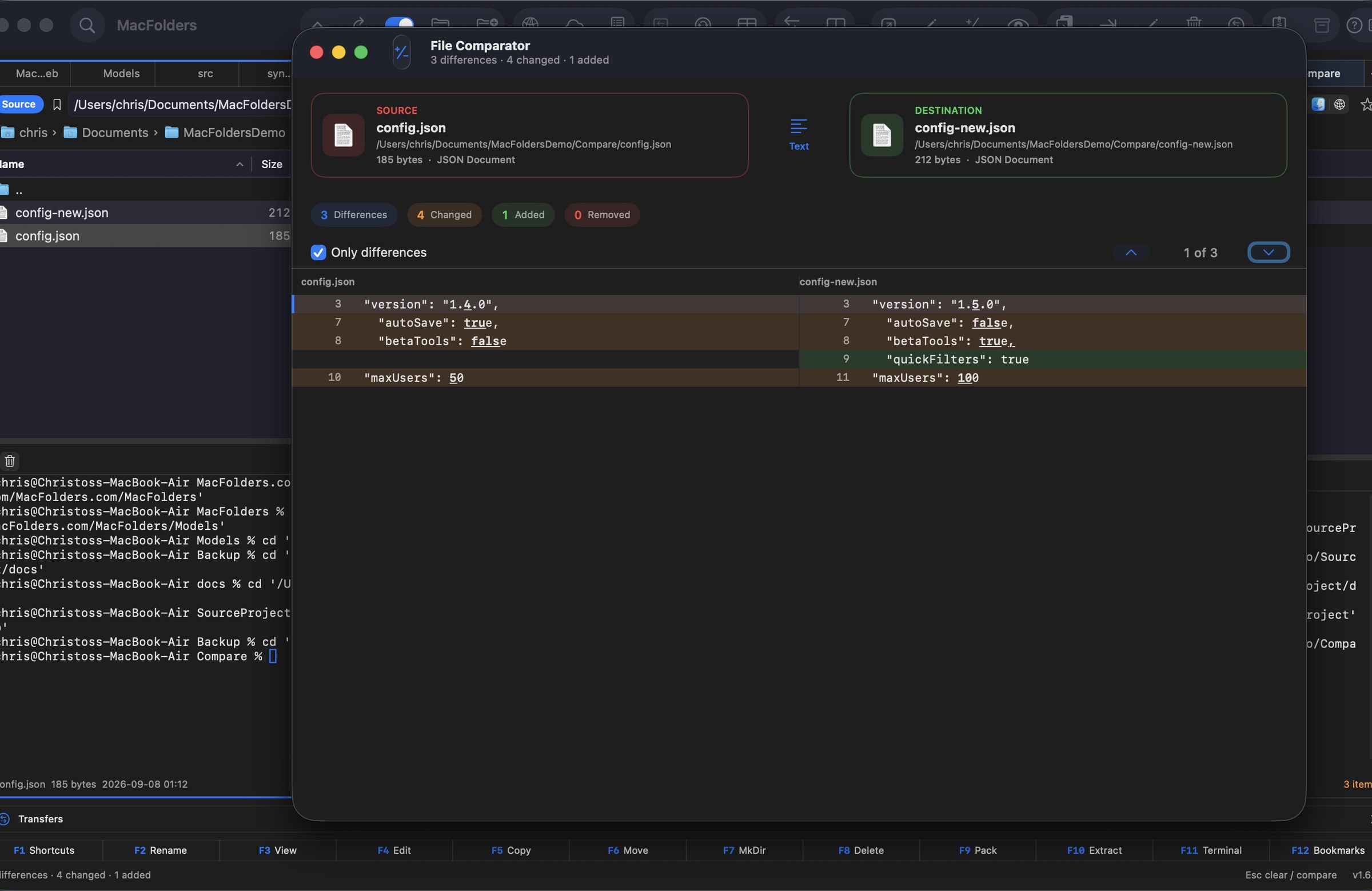
Side-by-side text with in-line differences, or hex for binary files. Filter to only differences and jump Previous / Next.
 Find in files
Wildcards, content search, HEX, regex, size and date filters, plus a toggle to search inside zip and tar archives too. Go to Source opens the file’s folder in the Source pane.
 Archives
Enter zip, tar, tar.gz, and tar.bz2 like folders. ZIP is writable. tar is extract-only. Pack and Extract from the toolbar.
 Preview
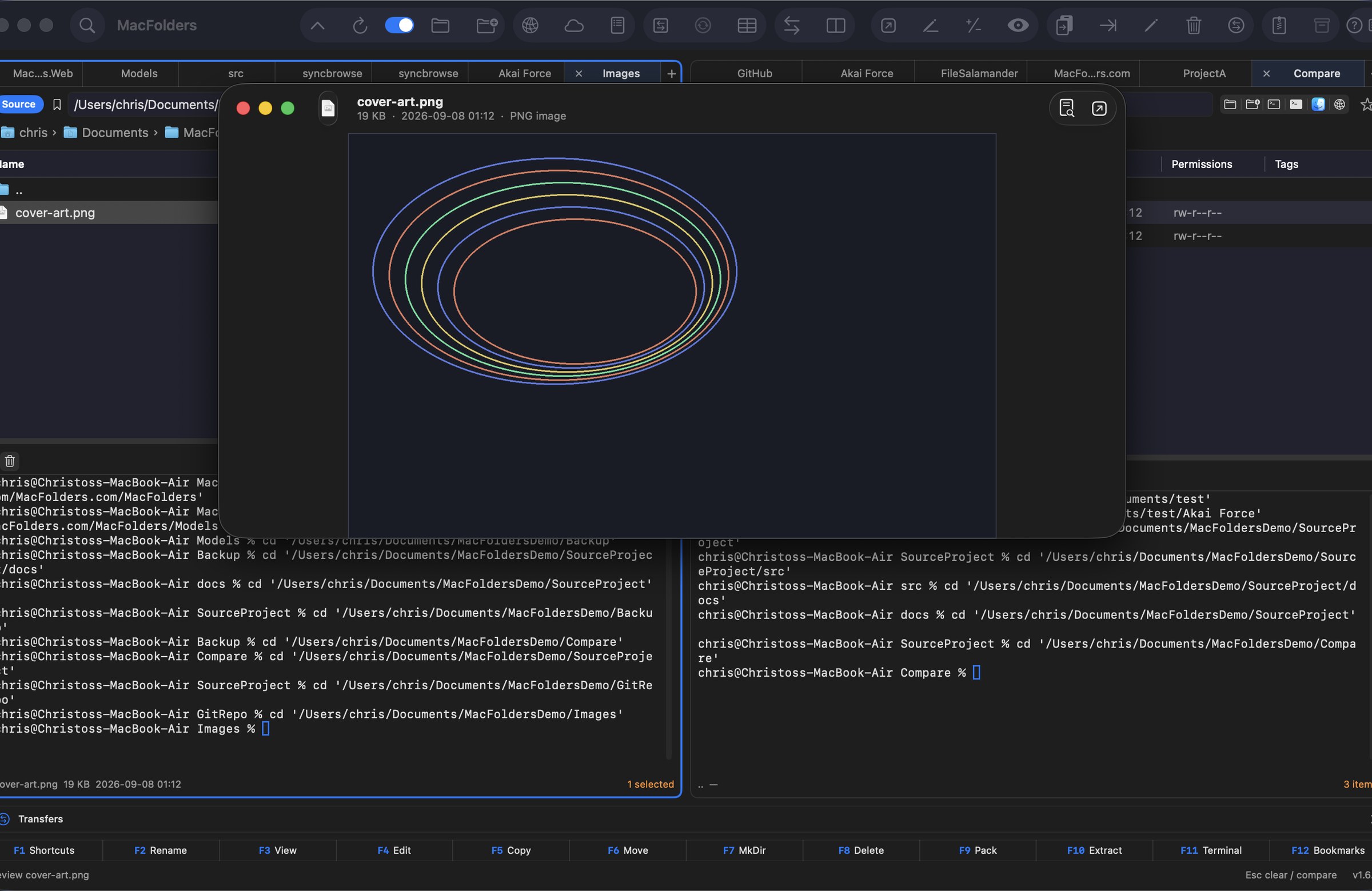
A separate window that follows the Source selection. Code and config files always preview as text. Open launches the default app.
Large File ViewerFiles over 5MB get a banner offering a separate window that streams the file in pages instead of loading it whole — paged navigation, jump-to-line, and find-in-file stay fast regardless of size. New in 1.6.26. A line-number gutter now runs alongside the text, and long lines scroll sideways instead of wrapping so the numbers stay aligned. New in 1.6.27.
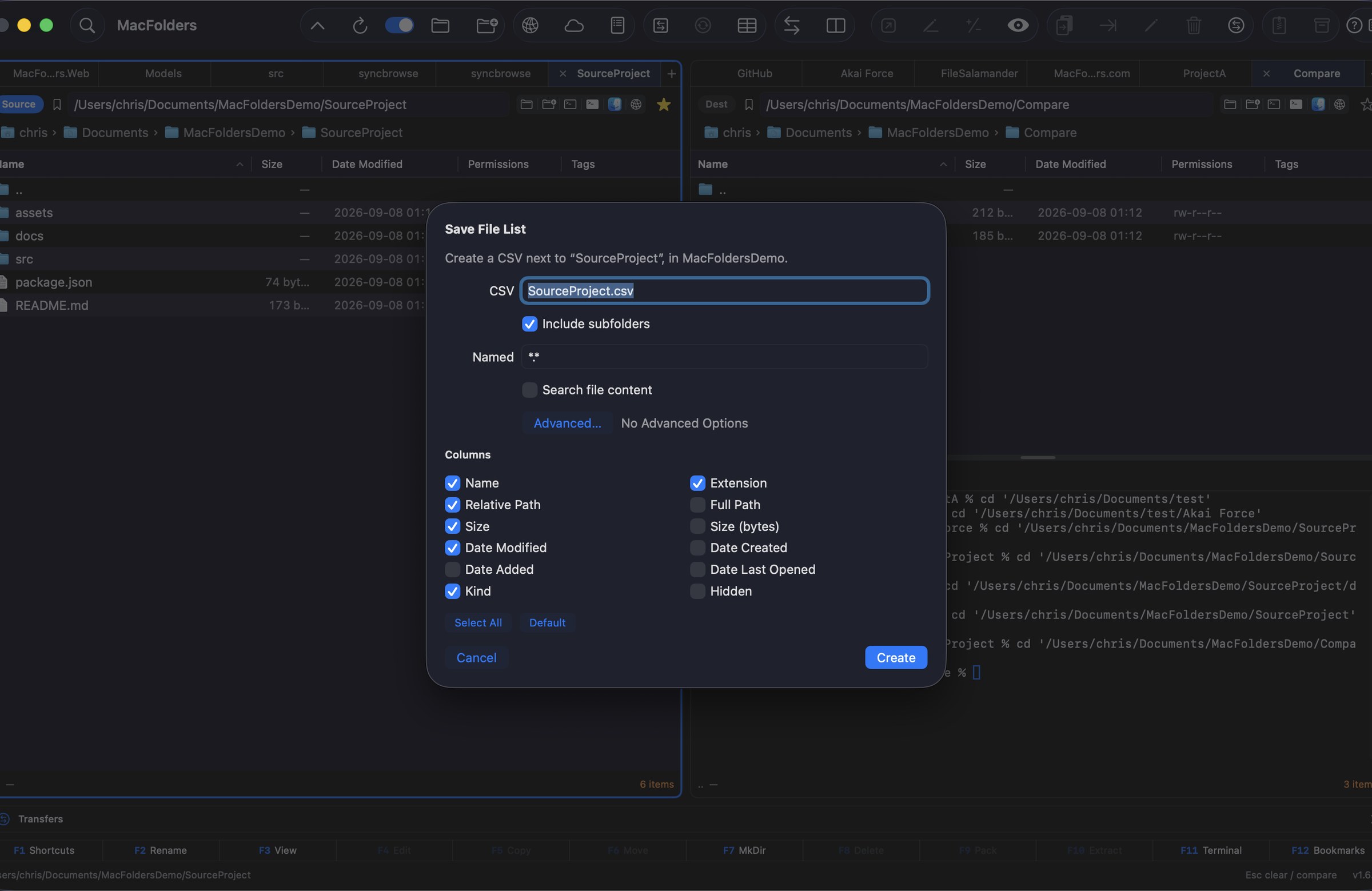
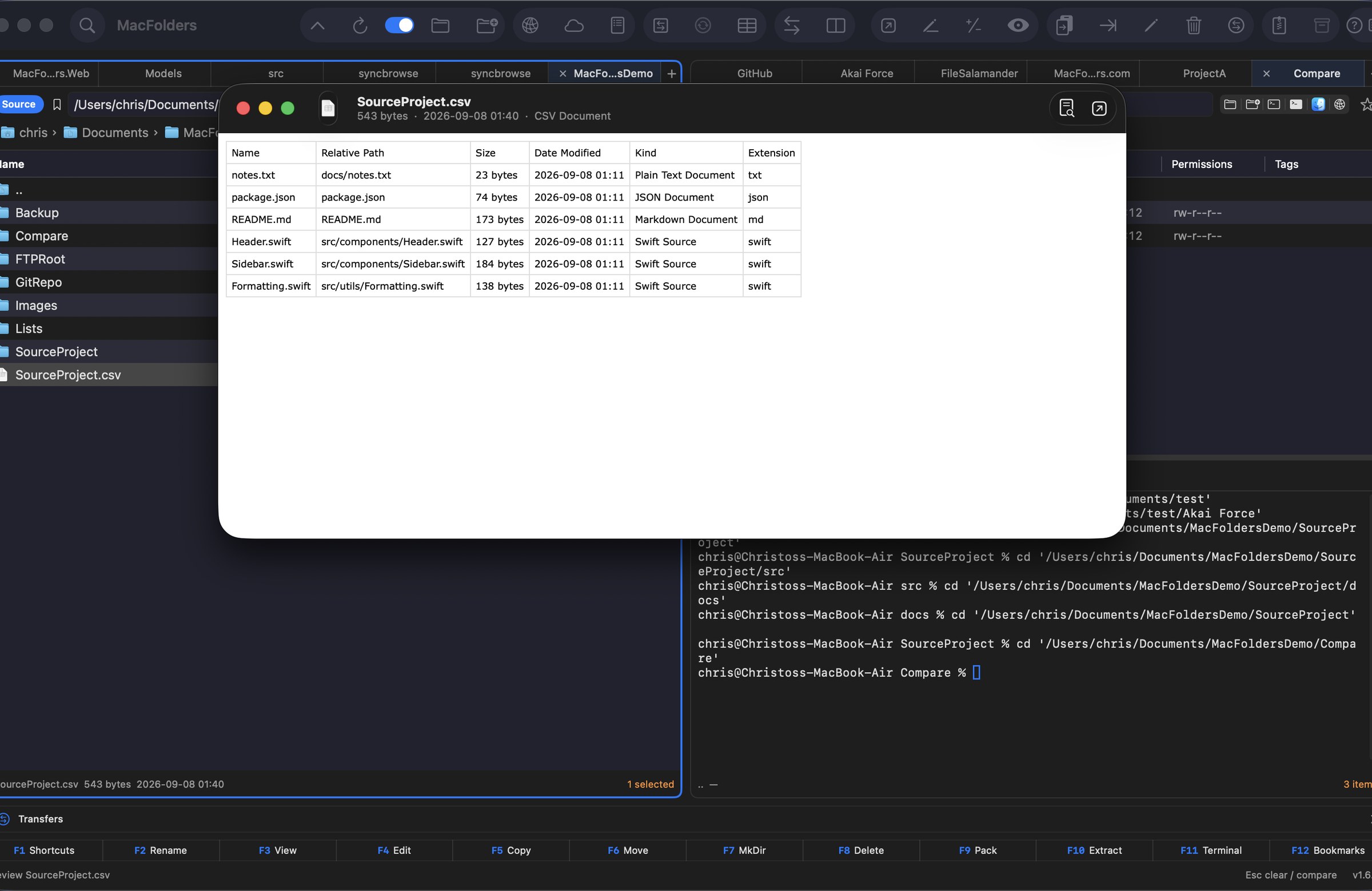
Save file listWrite a CSV next to a folder. Choose columns, subfolders, name patterns, and the same content filters as Find.
 Themes and toolbar
System, Light, or Dark. Native, Paper, Sand, Ice, Midnight, Forest, Ember, Commander, Xcode (new in 1.6.18), Retro (new in 1.6.23). Customize toolbar buttons; the layout is saved.
Update checkOn startup and every few hours the app asks macfolders.com if a newer version exists. Update available appears above the function keys; click it to open Releases.
 Git status
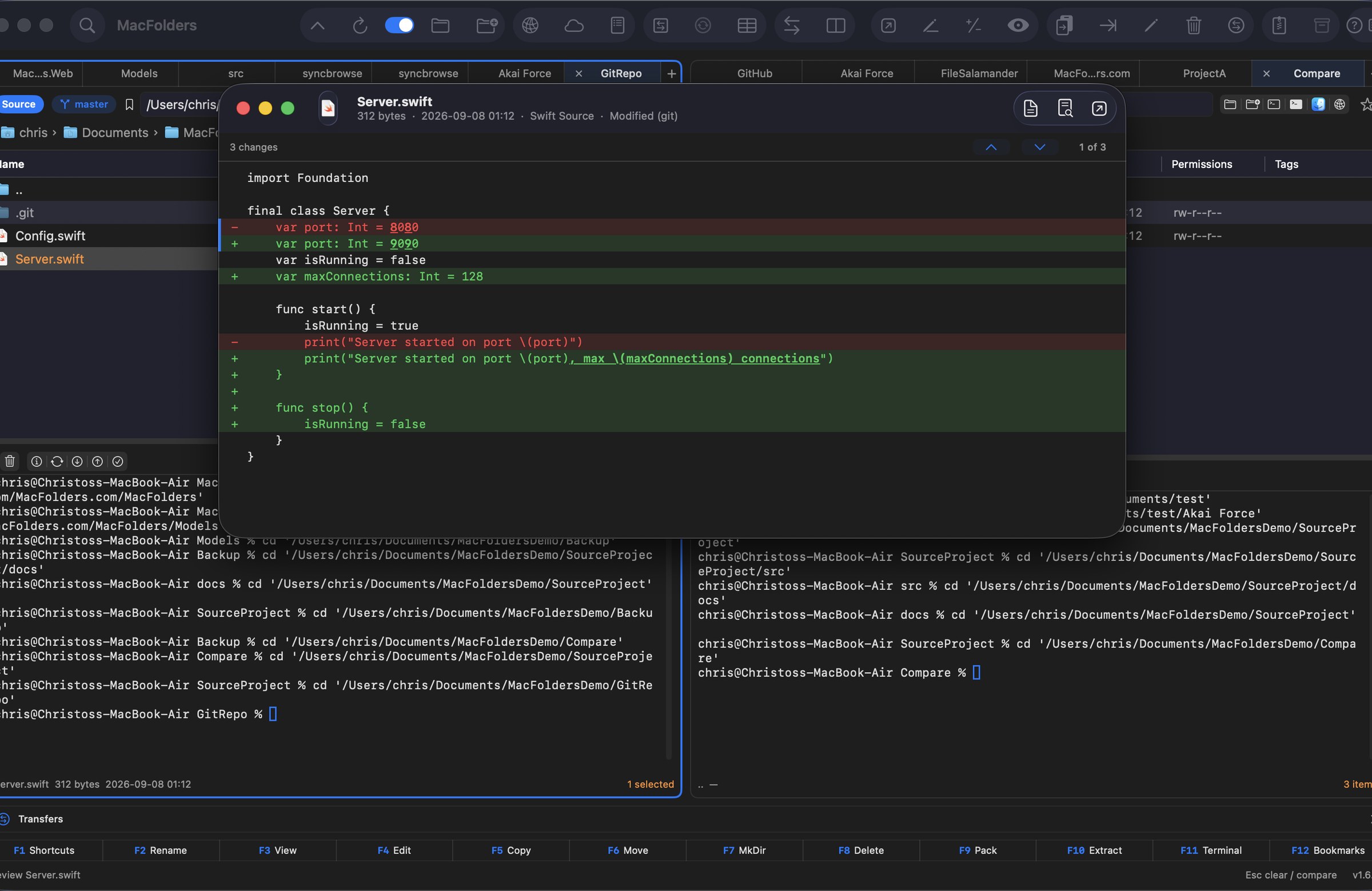
A branch badge next to the path field, a Git column for the file list, and a Show Diff toggle in Preview for what changed since the last commit. Stays live as branches switch. New in 1.6.8.
 Shortcuts.app Automation
Copy Files, Move Files, Create Archive, Extract Archive, and Find Files are available as Shortcuts.app actions, so MacFolders can be chained into your own automations. New in 1.6.25.
Panes
 View larger
Git
 View larger
Bookmarks and path prediction
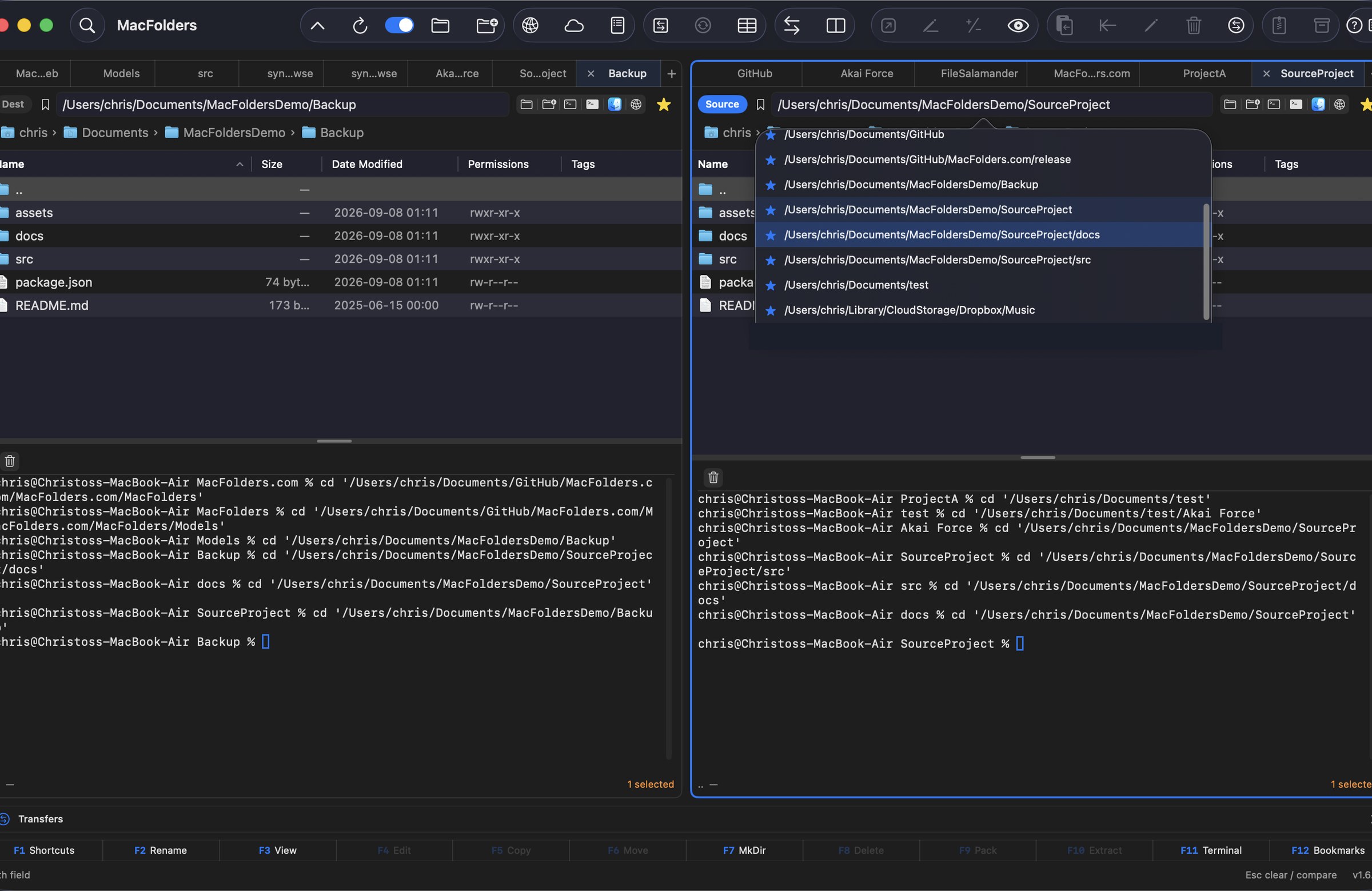
The star next to Terminal and Finder saves the current folder. A filled yellow star means it is already bookmarked. Click the bookmark icon just before the path field — or press F12, ⌘L, or ⌃L for the Source pane — to browse and jump to a saved folder. Typing in the field is separate: matching local subfolders predict the rest as you go, with Return completing the highlighted match and continuing to predict, so bookmarks never get in the way of a path you're typing out. New in 1.6.12.
 View larger
FTP / SFTP
⌘K or Go → Connect to Server opens FTP or SFTP with Password or Private Key authentication. Passwords and key passphrases stay in the Keychain; SFTP host keys are pinned so a changed key is flagged, not silently trusted.
Once connected, the remote pane drags, uploads, downloads, and compares like any local Source or Destination.
 View larger
FTP command log
On a remote FTP or SFTP tab, the same green icon that shows the embedded terminal instead shows a live command/response log below the file list: every command sent and every reply the server sends back, with a timestamp, as browsing and transfers happen.
A small toolbar offers Clear and Copy All, plus find-in-text and font-size controls, and the log follows the newest line as it arrives. New in 1.6.16. SFTP has no plaintext wire protocol to show directly, so it logs one pseudo-command per operation instead — CONNECT, LIST, MKD, RMD, DELE, RENAME, RETR/STOR, DISCONNECT. New in 1.6.30.
 View larger
Cloud Providers
Add Cloud Provider (or the network icon on a pane header) opens a cloud account the same way Connect to Server opens FTP/SFTP: drag files in either direction, or rename, delete, and create folders remotely. Manage Cloud Providers lists every saved connection to reconnect, edit, or delete.
Finder and Terminal
 View larger
Embedded Terminal
cd to match, so its prompt always sits in the folder you're looking at. New in 1.6.25.
View larger
Folder compare
⌃Y or the toolbar Compare button checks Source against Destination by name. Identical items go green, missing items red, and same-name files with a different date orange.
Keep Source or Keep Destination, with Keep newer on by default so a same-name file only copies over when it is actually newer.
 View larger
Bulk Delete & Rename
Right-click a folder for a dedicated window that walks its whole tree — full Find-style filters for local folders, name wildcards for FTP/SFTP/S3/WebDAV/Dropbox — and shows exactly what will change before you run it. Bulk Rename combines find/replace, case conversion, prefix/suffix, sequential numbering, and extension rules with a live preview.
 View larger
 View larger
Files
File Comparator is a separate window for one Source file against a file in Destination — including differences inside a line.
 View larger
 View larger
 View larger
Find and lists
Find walks subdirectories by default. Named accepts several masks separated by semicolons. Search file content looks inside files for the Containing text. Save File List writes a CSV next to the selected folder, reusing Find’s name, content, and Advanced filters.
 View larger
 View larger
Preview
F3 or ⌃P toggles the Preview window. Closed at launch; once open, it follows the Source selection, and its position and size are remembered.
Code and configuration files always preview as text, even without a default text editor set. Open launches the file in its default application.
 View larger
Help
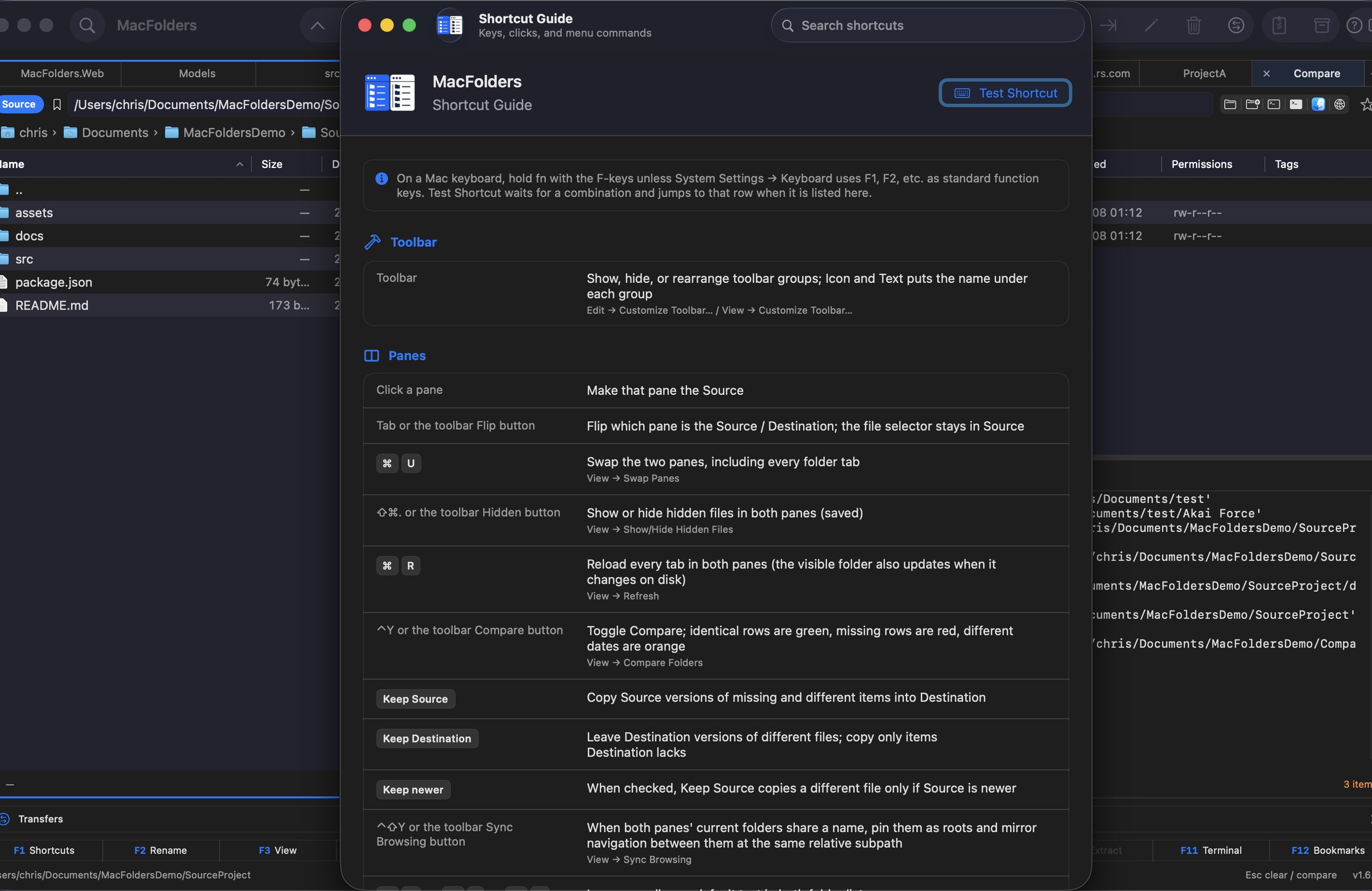
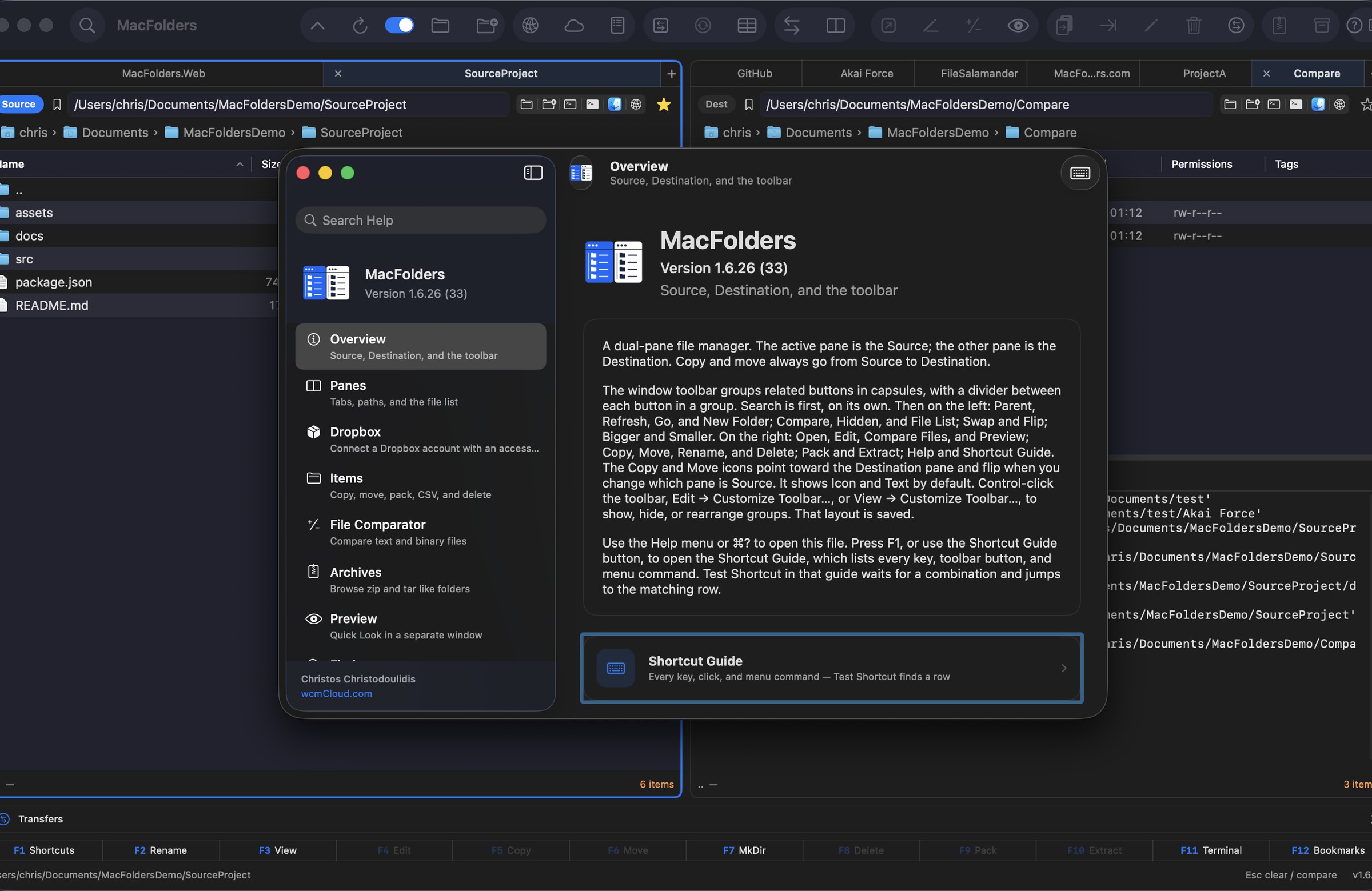
F1 opens Help. The Shortcut Guide lists keys, toolbar buttons, and menu commands. Test Shortcut waits for a combination and jumps to that row if it exists. The same Help and Shortcut Guide are on the Docs page.
Open, Edit, Open With, Pack, Extract, Rename, and Delete sit on the toolbar and on the Control-click menu for the current selection.
 View larger
 View larger
Also included
 Open and Edit
Open uses the default application. Edit uses the default editor for that type. Open With can remember an app for that file kind. Get Info opens the real Finder Get Info window for the selection. New in 1.6.20.
 New folder, rename, trash
New Folder in the pane you click. Rename in the list, like Finder (click the selected name, or F2). Delete always asks first, then moves to Trash — or removes an entry inside a ZIP.
 ZIP and tar
Copy into a ZIP adds items. You can mkdir, rename, and delete inside a ZIP. tar / tgz / tbz are browse and extract only.
Preview windowStays closed at launch. Once open, it follows Source. Position and size are remembered. Source-code and config files always show as text.
 Toolbar
Icon and Text by default. Copy and Move point toward Destination and flip when Source changes. Control-click the toolbar, or Customize Toolbar in Edit or View, to show, hide, or rearrange buttons.
SettingsFolders, tabs, bookmarks, Open With, window positions, toolbar, columns, text size, hidden files, theme, and appearance are saved. A Settings window (⌘,) edits appearance, file list, and window preferences directly, with a reset button per section and one for everything. New in 1.6.19.
 Windows NTFS disks
macOS mounts NTFS read-only. A pane shows a Read-only badge. A writable remount (for example Hasleo NTFS) is needed before copy-in, move, mkdir, rename, or delete.
 Full Disk Access
Add MacFolders in System Settings to browse Desktop, Documents, Downloads, and other protected folders. File → Full Disk Access Settings… opens the right pane.
 Feedback
The Feedback button in the bottom status bar opens a form to report a bug or request a feature, right from inside the app. New in 1.6.32. The same sheet has a heart-shaped Like button — tap it as many times as you like to show some love for the app, with a running total shown beside it. New in 1.6.36. The email you use for either is remembered and filled back in next time. New in 1.6.37.
About
Version 1.6.39, developed by Christos Christodoulidis. Help → About in the app shows the same name, version, and site as the in-app Help window above.
 View larger
 View larger