Dual panes, not dual windows
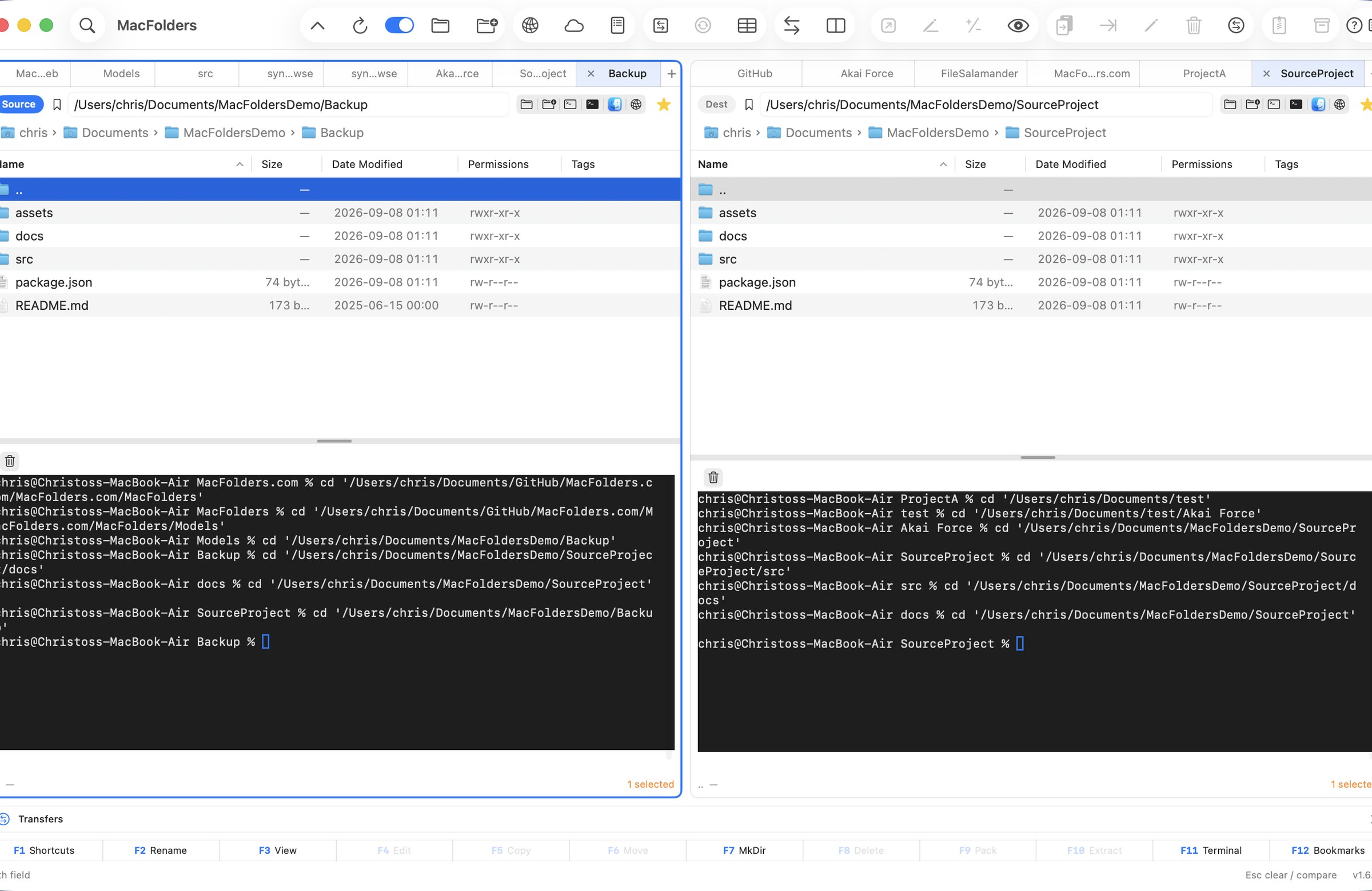
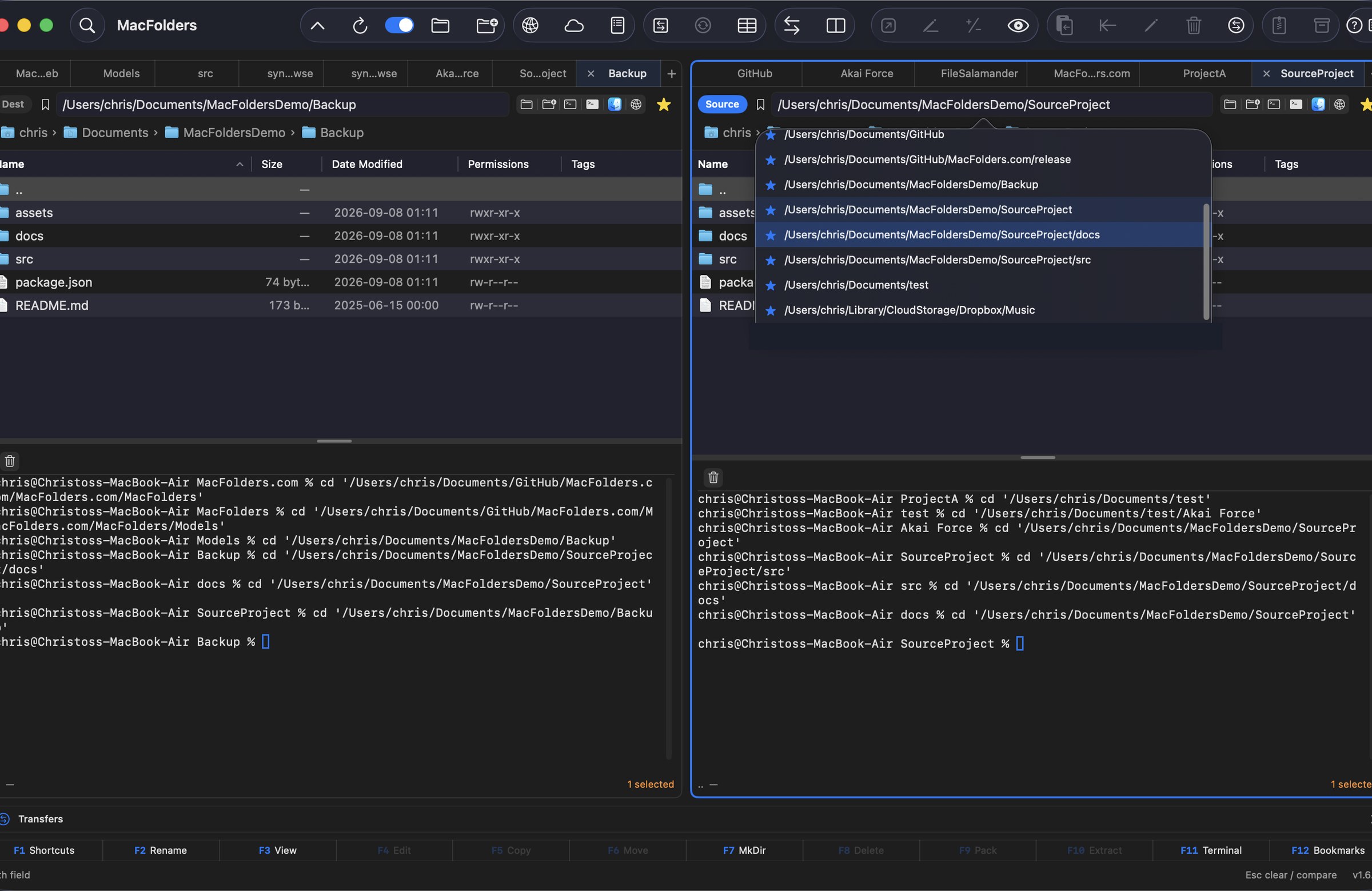
Each pane has Finder-style lists, folder tabs, and a path bar. Flip Source and Destination, or swap the two folders, without losing your place.
Free while MacFolders is in beta — register today and that email keeps 80% off Pro for life.
See how it works →Native for macOS
MacFolders is a dual-pane file manager. The active pane is the Source; the other is the Destination. Copy, move, compare, search, and pack files without hunting through overlapping Finder windows.
 View larger
Beta launch — while you can
MacFolders is in beta and free to download right now. Register with a real email today, and that same email keeps 80% off every deal on MacFolders Pro — for as long as you use it.
What it does
Each pane has Finder-style lists, folder tabs, and a path bar. Flip Source and Destination, or swap the two folders, without losing your place.
Transfers queue in a persistent window — pause, resume, reorder, or cancel any of them. Folder compare paints identical, missing, and changed items. A side-by-side comparator opens text and binary files.
Search by name, content, size, and date. Browse zip and tar like folders. Preview code and documents in a separate window that follows the Source selection.
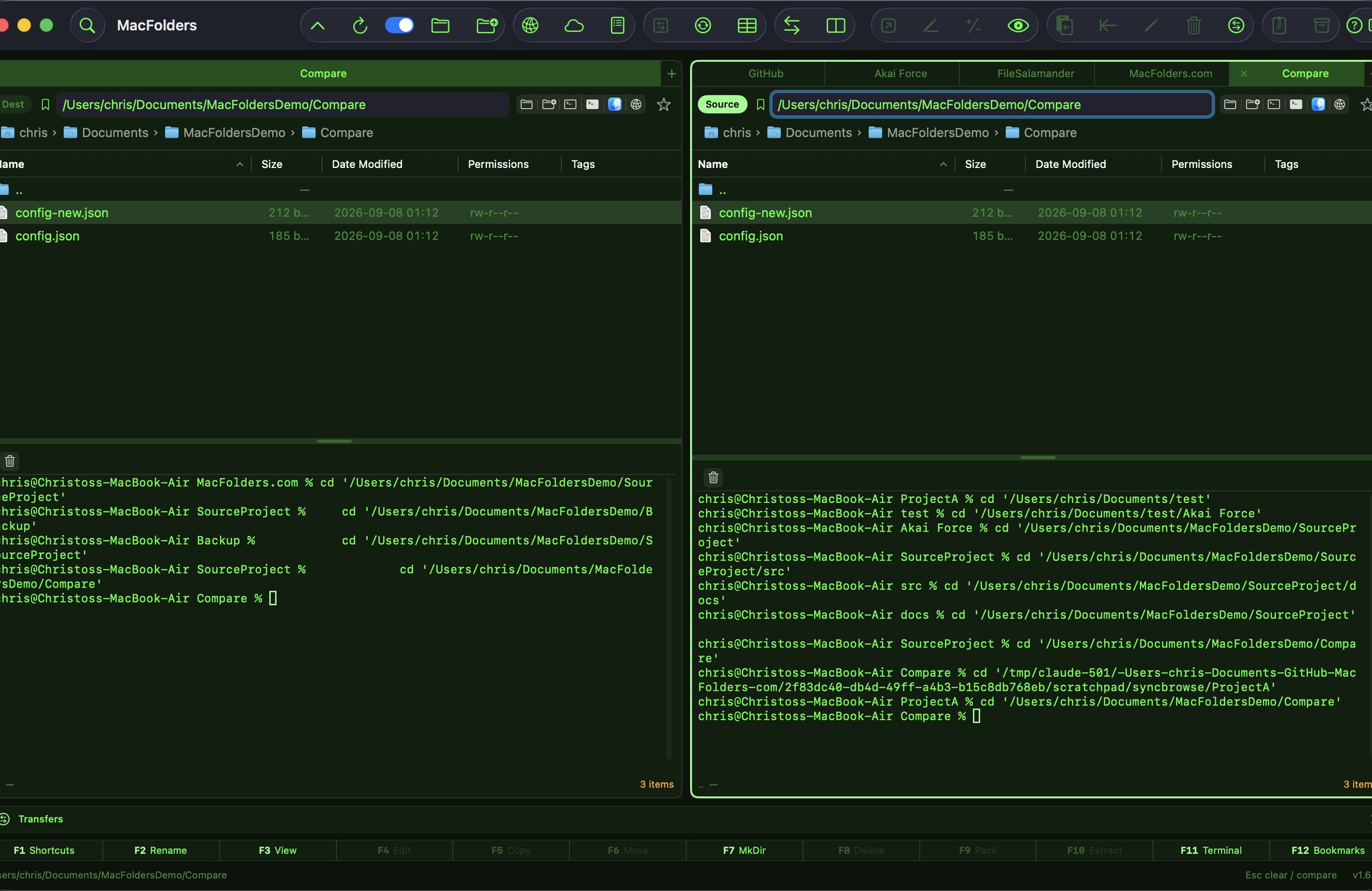
Compare
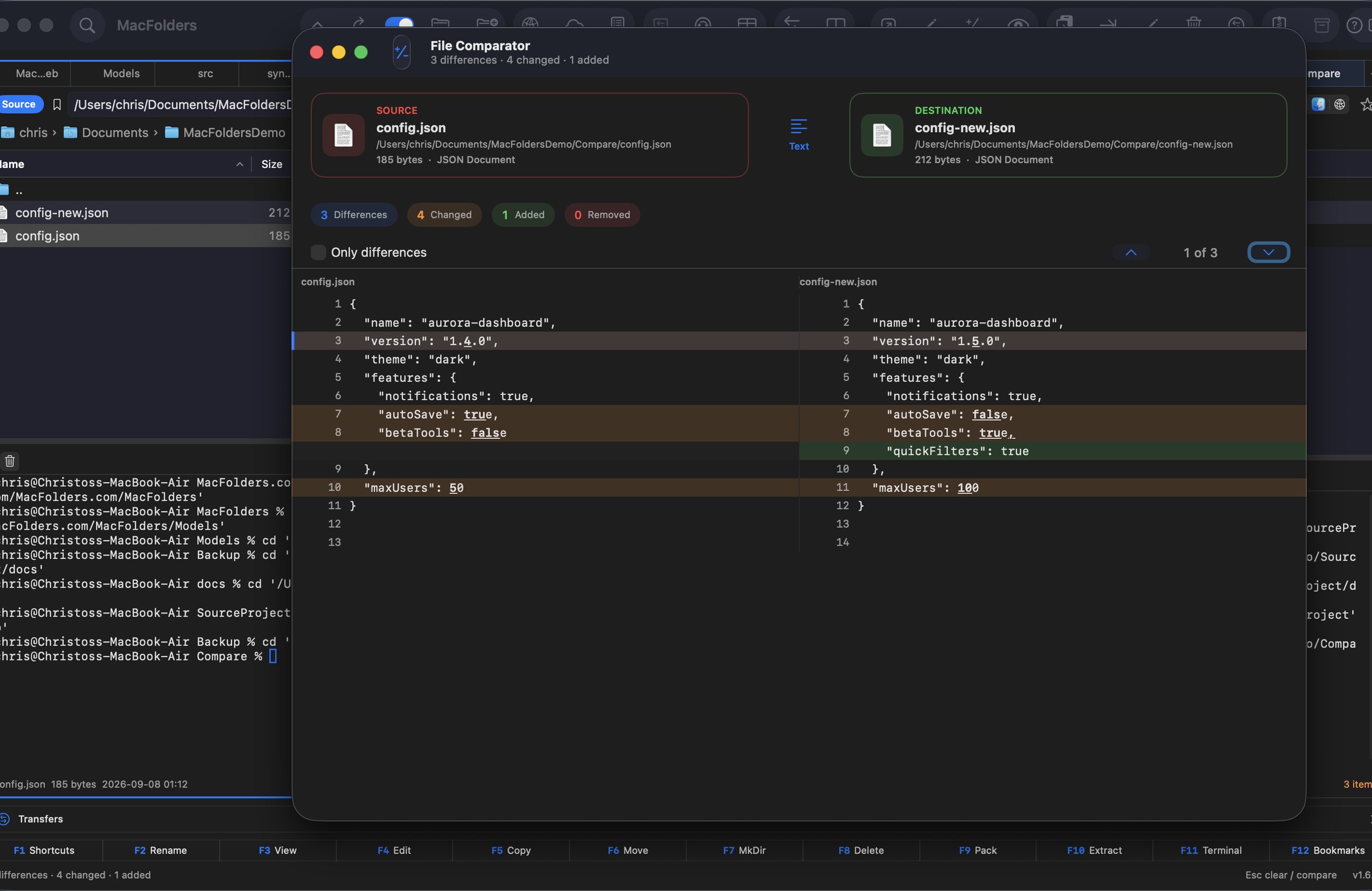
Compare two folders by name. Matching items go green, missing items red, and same-name files with a different date orange. Then Keep Source or Keep Destination — with an option to keep only the newer file.
Need the contents of two files? File Comparator shows a side-by-side text or hex view, jumps between differences, and can hide matching lines.
 View larger
Connect
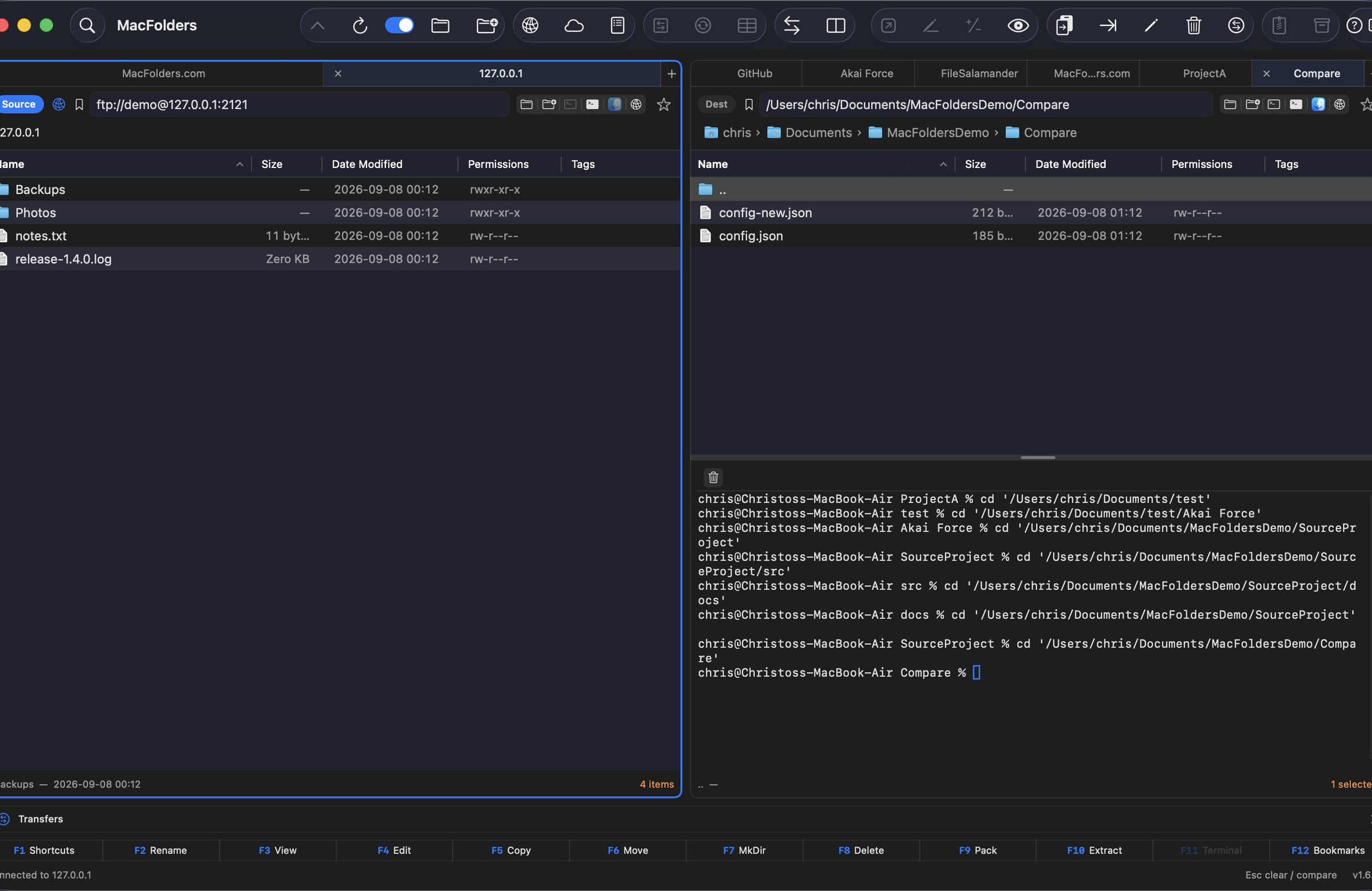
Connect to Server (⌘K) opens FTP or SFTP in a pane you browse, drag, upload, and download exactly like a local folder. Passwords and key passphrases stay in the Keychain; SFTP host keys are pinned.
Enter a host, pick Password or Private Key, and the remote pane behaves like Source or Destination — copy, move, and compare work the same way across the connection.
 View larger
Terminal
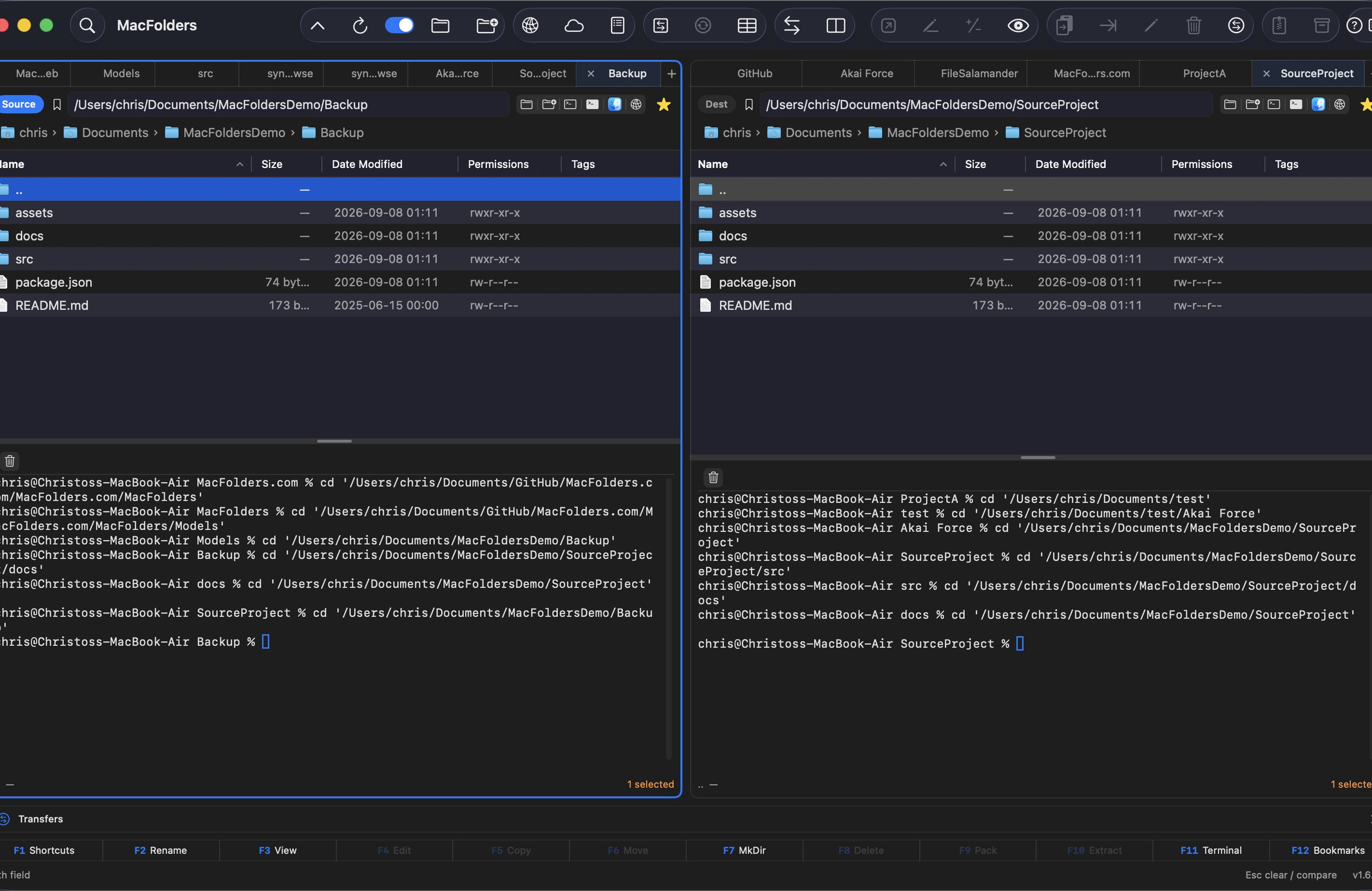
F11, ⌃⌘T, or the terminal icon opens a colored, resizable shell below either pane — no separate window, no switching to Terminal.app. As you navigate — Backspace, a double-click, the path bar, or a bookmark — the shell sends a cd to match, so its prompt always sits in the folder you're looking at.
Inside a git working tree, a small toolbar above the shell adds Git Status, Fetch, Pull, Push, and Commit All…, alongside Clear Terminal. Each pane remembers its own height and whether it's open.
 View larger
Looks at home on a Mac
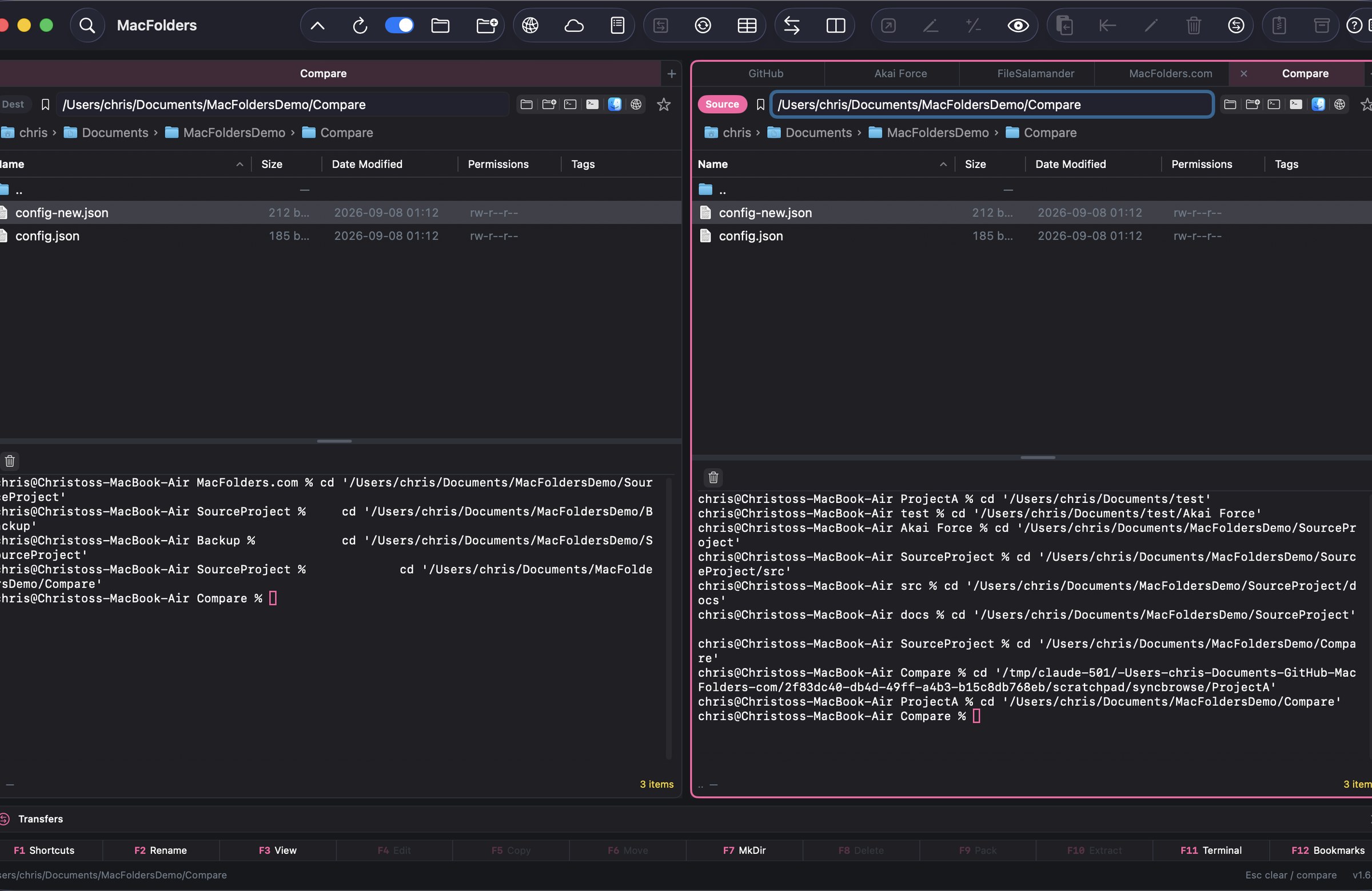
A unified toolbar with Icon and Text. Finder icons in the file list. Appearance can follow macOS, or you can lock Light or Dark and pick a theme — Native, Paper, Sand, Ice, Midnight, Forest, Ember, Commander, Xcode, or Retro.
Full feature set
Five groups cover every corner of MacFolders. Expand one below, or head straight to the Features page for screenshots and detail.
 Panes & navigation
5
Panes & navigation
5
 Transfer & compare
6
Transfer & compare
6
 Search, archives & lists
4
Search, archives & lists
4
 Remote & Git
5
Remote & Git
5
 Look, feel & extras
6
Look, feel & extras
6
Download the zip, drag MacFolders into Applications, and you are on your way. A short note on the first-launch Mac warning is on the download page.